 Centro de ayuda
Vehicle status
Changing vehicle status from the Edit Vehicle Page:
- In the back-end menu, go to Inventory > Inventory Manager.
- Select the vehicle to edit and scroll down to Status.

- Click the Save Changes button on the bottom left.
Changing vehicle status from the back-end:
- In the back-end menu, go to Inventory > Inventory Manager.
- Change the vehicle status in the Status column.
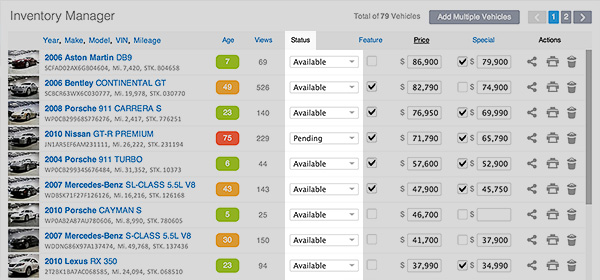
- Click the Save Changes button on the bottom left.
Vehicle Status Defined:
- Available
The vehicle is available and will display throughout your site without restriction. - Sale Pending
The vehicle will display a Sale Pending banner across the image. This is a vehicle that is not available for sale at the moment but might be in the future. - Coming Soon
The vehicle will display a Coming Soon banner across the image - Unpublished
Unpublished vehicles will not display on your website and are removed from inventory and placed into the 'Unpublished' section in the 'Inventory' section on your back-end. - Sold
Sold vehicles will not display on your website and are removed from inventory and placed into the 'Sold' section in the 'Inventory' section on your back-end.
You also have the option to select if the vehicle is:
- At Dealership
- At Auction (When you select this it will give you the option to pick at which auction)
- In Transit
- At Distribution Center (When you select this it will give you the option to pick at which distribution center)
|
|
Once you save changes, Unpublished and Sold Vehicles will be moved to Inventory › Unpublished and Inventory › Sold
|
