 Centro de ayuda
Add multiple vehicles
Add multiple vehicles to inventory with just one step. Here's how:
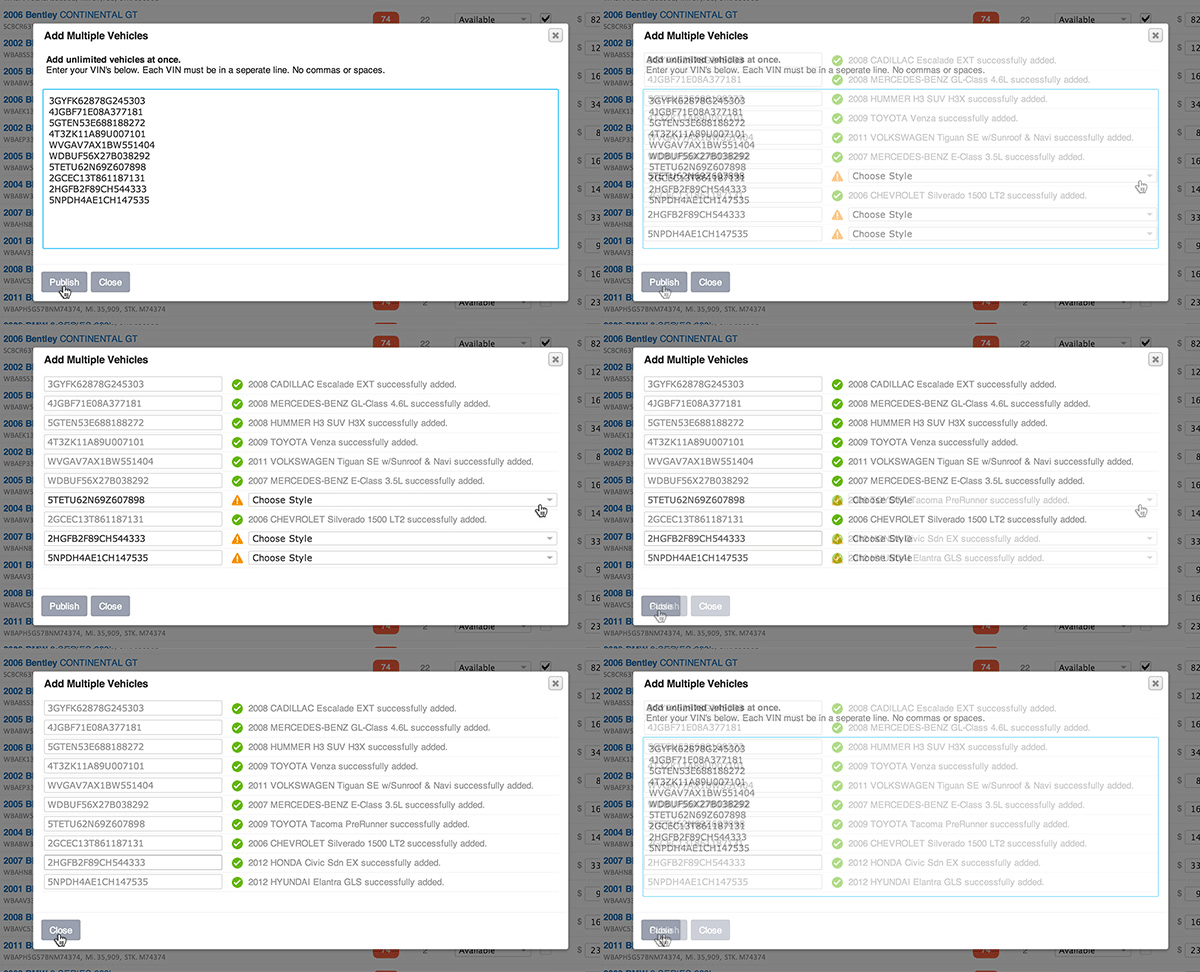
- In the back-end menu, go to Inventory › Inventory Manager.
- In the top right corner of your inventory, click on Add Multiple Vehicles.
- A pop-up window will open.
- Enter the VIN numbers without commas.
- Click on Publish to decode.
- Click on 'Choose Style' for vehicles with the alert icon (orange triangle). When finished, click Publish.
- Click on Close once all VIN numbers display a green circle-checkbox.
|
|
Updating dealership information will make changes to your site immediately.
The VIN decoder might ask you to select a style for a particular VIN number. If a green circle-checkbox appears, that means the vehicle was successfully added to inventory. Make sure to enter the vehicle page to upload photos, price, mileage etc. Double check all information for accuracy. |
