 Centro de ayuda
Events in Lead Workspace
In the back-end menu, go to CRM › Leads
Select the desired customer and go to Events.
Here you can schedule events with that customer, like test drives. 
Type in what type of an event it is, choose the date, type in the time and click on Add Event. All the events will be added to your Calendar and Dashbord as well.

You can also add comments.
Or attachments.

Once the event is scheduled you’ll see it as an upcoming event and a red number will be shown next to Events, the number depends on how many unconfirmed events you have.
And once the event is added in order for it to be linked to your Calendar you need to Confirm the Event.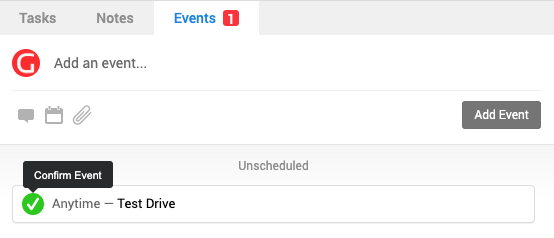
You can also make changes to the event by clicking on it.

Once you make any change, just click on Save
*Even though the event is visible from the Calendar and Dashboard, you can only access leads through the Dashboard. Calendar only shows all events and under Dashboard if you look under upcoming events and you click on the event it will open up the lead workspace where you have the event scheduled.
