 Centro de ayuda
Adding Phone Lines
If you want to add a new virtual phone number go to Admin > Phone and click on the red button Add Line at the top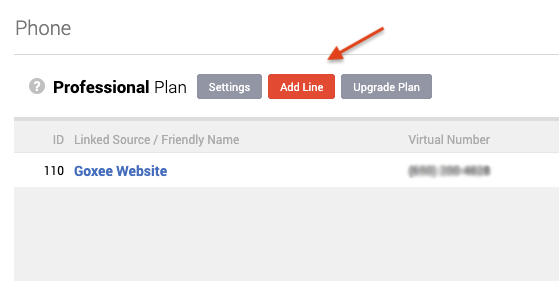
Once you click on Add Line a new window will pop up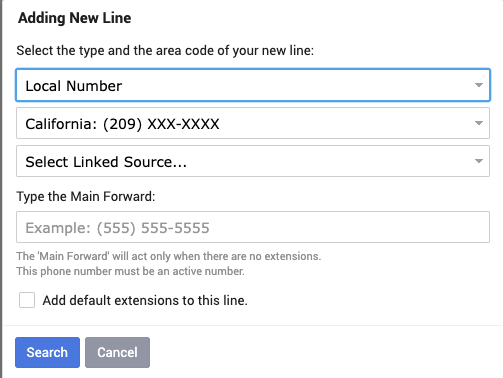
1. Always leave the first drop-down on Local Number,
2. In the second drop-down select your Area Code
3. In the third drop-down select the Source for which you need the tracking number
4. Where it says Type the Main Forward put the number where you want to forward all the calls to
*You can choose for the system to add the default extensions by marking the empty box at the bottom of that window. The default extensions are 1 for Sales, 2 to Leave a Voicemail and 3 to receive the Dealership Address via Text
Once you are done click on the blue Search and a new window will pop up with different available virtual numbers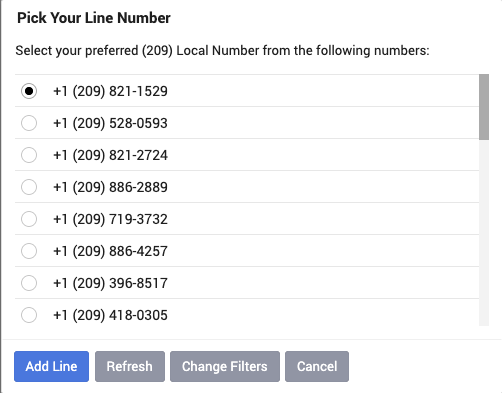
Once you find the perfect virtual number just select it by clicking on the number you want and click on blue Add Line.
If you don't like any of the virtual numbers that the system is currently offering you can click on the Refresh button and then check if there are any new numbers that came up.
If you want to change the previous setup just click on Change Filters.
Certain Area Codes might not have any available virtual numbers in which case a new window would pop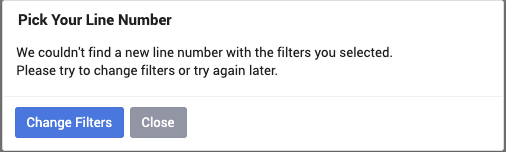
If it says that it can't find any new line numbers we recommend trying a different area code
However, if this is the only area code you can use, we just need to check that area code at a different time, because new available virtual numbers will appear again at one point
