 Centro de ayuda
Optimizing Phone Lines
When it comes to optimizing phone lines you have a couple of different things you can do. First, go to Admin> Phone
When you click on the Source a new window will pop up 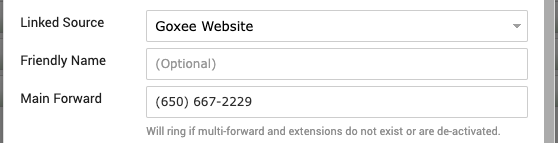
- Linked Source - Where you can change the source for your virtual number
- Friendly Name - If you want to change the Source name you can type in what you would like it to be called in the Friendly Name column
- Main Forward - This is where you can change the number where the calls are being forwarded to
*Be aware that if the Multi-Forward is activated or if there are any extensions the Main Forward number will not ring
- Multi Forward - When you click on Add New you have the option to add multiple phone numbers that will ring if the customer calls the virtual number
When you click on Phone a drop-down menu will show where you can pick between 3 options
When you choose Phone you can type in the number you want to ring, if you click on User you can select the user from the system that has a number added under their account and if you click on Group you can select which department should get those calls, for example if you pick Sales Reps anyone who has their title under Users as Sales Rep will get the call as long as their phone number is added on their account.
*You can add up to 5 different numbers and be aware that the Multi-Forward will not work if there are any extensions added for that virtual number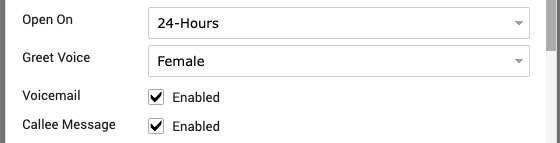
- Open On - You can pick if you want us to forward the calls 24/7 or you can choose Business Hours where we would forward the calls only during the Business Hours
*You can set up your hours under Admin > Dealership Settings
- Greet Voice - You can pick if the voice that says, this call may be recorded etc., is Female or Male
- Voicemail - You can enable or disable the option for voicemail on the virtual number
- Callee Message - You can enable or disable the message you get where it says that you are receiving a call from a certain source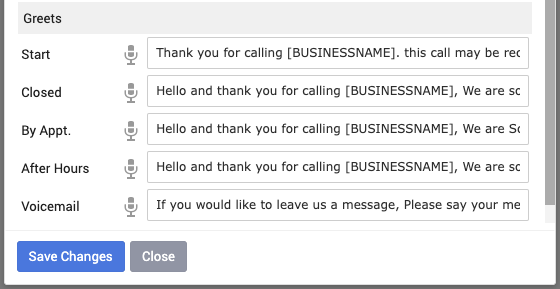
Under Greets, you can type in how your message will go or you can record one by clicking on the microphone icon.
When you want to record your own custom greet a window will pop up where you can add your phone number and then click on the blue Call Me button. When your phone rings, answer it and start recording your message.
Whatever you update make sure to click on blue Save Changes.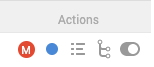
Under Actions you have 5 options
1. By clicking on the icon M you can select that specific line to be a Main Line
2. By clicking on the blue circle you can deactivate the line, or if it's already deactivated it would be gray color and if you want to activate it you just click on that gray circle. In both cases, a window will pop up asking if you are sure if you want to activate or deactivate the line.
3. The third icon is View Log, when you click on that icon it will show all calls and texts you received under that phone number
4. Forth icon is where you can add or manage extensions
5. The last icon which is a toggle button is for releasing the phone number
*The phone number can be only released by the Goxee team, so in case if you want to remove the phone number completely please make sure to contact your Account Rep
