 Centro de ayuda
Retargeting
If you want to manually do retargeting and send a mass text or a voicemessage, you can do that by going to CRM and clicking on the green button at the top that says Retarget (You have to be subscribed in order to be able to turn on your automations - How to Subscribe)
First what you need to do is to filter who you want to retarget and you have that option at the top - 
You can filter between Working, Archived, and Sold leads, as well as On-hold, Starred, Action Required, Working Status, Vehicle, Source, Inquiry, Automation Activity, and Team Member.
Once you filter who you want to retarget, click on the green Retarget button and there you can choose if you want to do a Text Or Call retargeting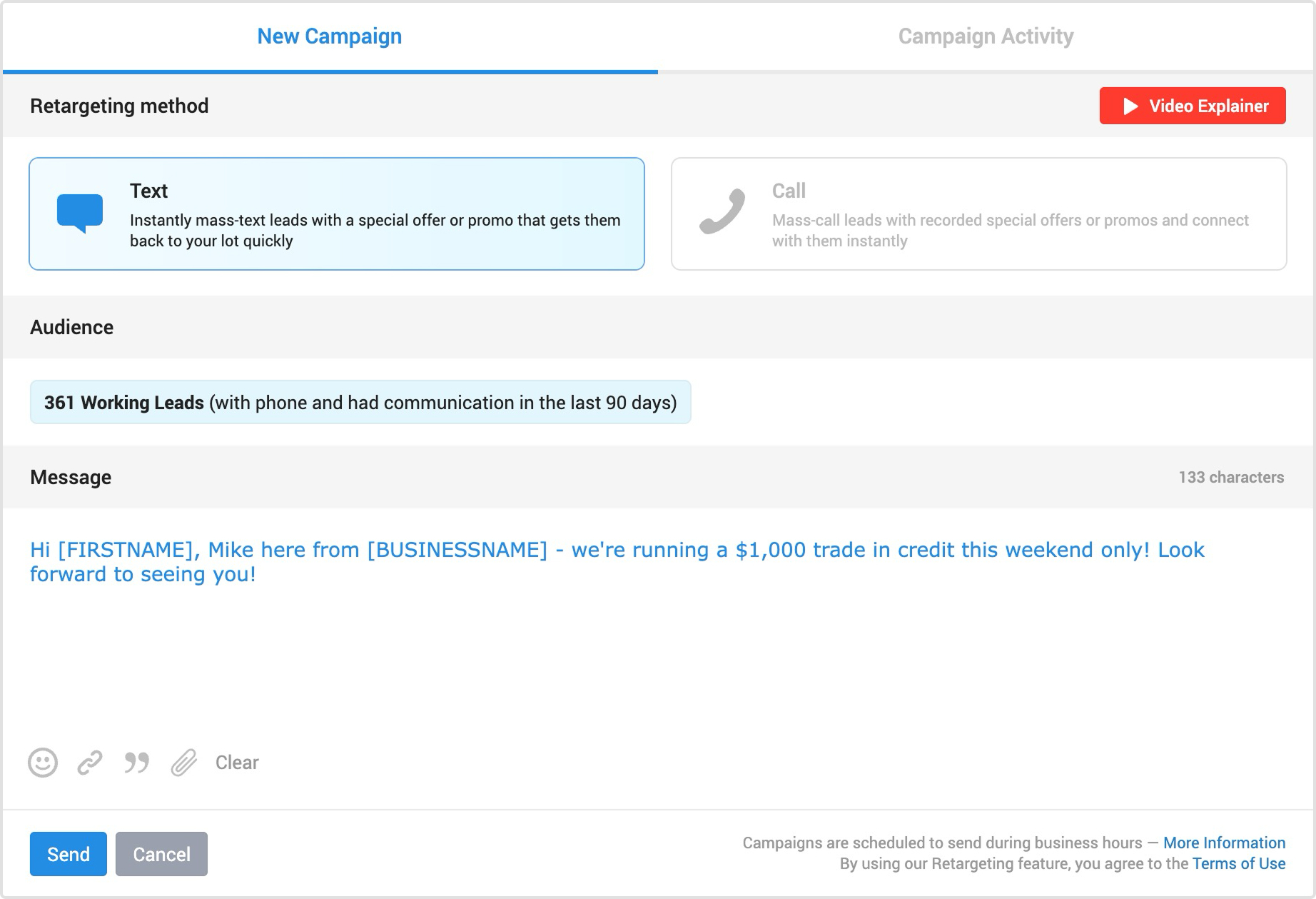
With text, you can just type in the message you want and click on send. We also have some presets, so if you click on the  icon and if you type in, for example financing, different templates regarding that will pop up for you to choose from.
*Please be aware of your text usage because 1 text is 160 characters, so if you have more characters the system will count it as 2,3,4, and so on text messages. You can check how many texts you left if you go to Admin > Phone and in the top right corner, it will tell you have many you have each month and how much you spent so far.
Tags available in messages are:
| [BUSINESSNAME] | The business name as shown in Dealership Settings. |
| [FIRSTNAME] | The first name of the lead. |
| [VEHICLE] | The main vehicle of interest. |
| [REVIEWURL] | The URL which allows the client to leave a review. |
| [VEHICLEURL] | The vehicle interest URL. |
| [INVENTORYURL] | The dealership inventory URL. |
You can of course also add emojis, links and attach files at the bottom left corner.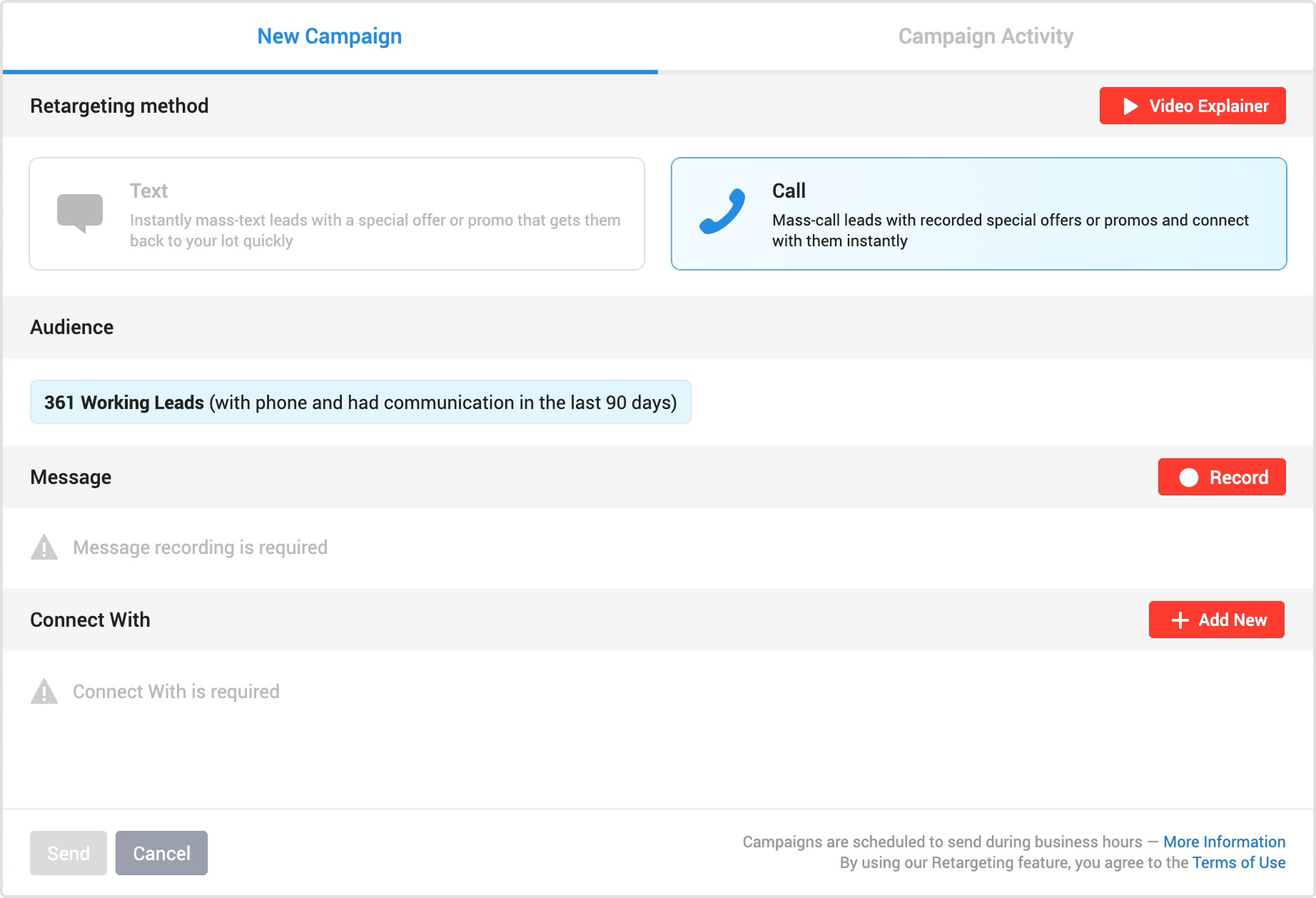
When it comes to sending voice messages, you just need to click on the red button Record and it will open up a window where you can enter your phone number. Once you add your number and click on I'm ready, call me you will get a call and you can start recording your message by just following simple instructions.
Under Connect With you need to add the phone numbers, users, or groups that the calls will be redirected to.
Once everything is done, click on Send.
*Please be aware that Calls in Retarget is using minutes from your Phone Plan and you can check how many minutes you have left if you go to Admin > Phone and in the top right corner, it will tell you have many you have each month and how much you spent so far.
*By using Retargeting feature you agree to the Terms Of Use.
