 Centro de ayuda
Adding a vehicle
If you want to add a new vehicle, just go to Inventory > Add Vehicle.
First, add the VIN number 
VIN number should be a mix of 17 numbers and letters, once you enter a VIN number click on the refresh button next to it and it will auto-populate all the main options and standard options. If there is anything that it's not populated you can always add manually.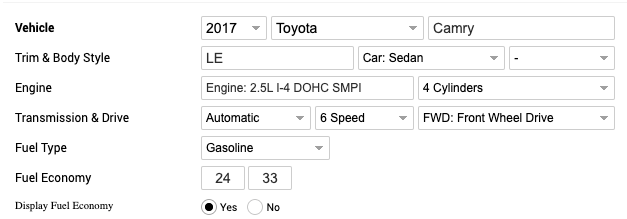
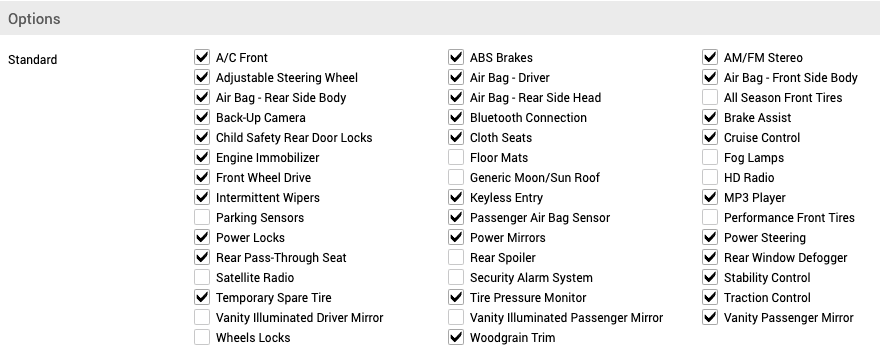
Sometimes the same VIN might have different styles, in that case when you add the VIN number and click on refresh it will give you the option to pick exactly which vehicle you have, by clicking on Choose Style and selecting from the drop-down menu
The next step would be to add Stock (if you don't have it, just leave it empty and it will auto-populate the last 6 digits of the VIN), Mileage, Vehicle Price (you can choose to show it or hide it) and Special Price if you have it
You can also turn on or off Financing for that specific vehicle or even add a Financing Special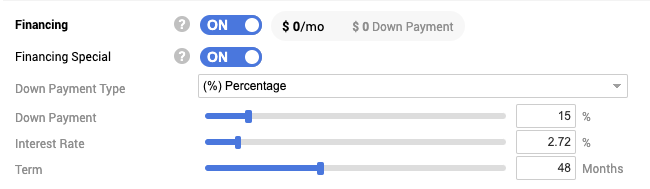
You can pick the Status, if the vehicle is Inspected, Smogged, or Detailed, and even choose if you want to Feature the vehicle on the website home page and include it in Craigslist Auto-Poster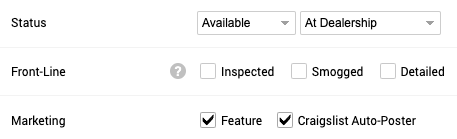
Then select the vehicle colors, when you decode a VIN it will give you the option to pick between all the colors that the vehicle has
You can also pick Condition, Posting Condition, Warranty, Title Status, Owners, and Vehicle History Report.
*title status, owners, and VHR can be automatically populated if you have your VHR connected under integrations.
After options, you can autogenerate the Description or add your own
Below the description, you have the option to Add Photos, vehicle YouTube video, and Expenses of the vehicle.
Once you are done, click on the blue Publish in the top left corner and your vehicle will appear in Inventory Manager, or if you are not ready to publish the vehicle yet, click on Save and Publish Later in the bottom right corner and the vehicle be saved in the Unpublished folder.
