 Centro de ayuda
4K AI Strength
4K AI Enhancement offers three levels, so you can get the best results based on your photo quality.
Here is how to select the right 4K AI Strength:
1. Review Your Original Photo
- Open a vehicle from your inventory and scroll to its photos.
- Tap the “i” icon at the bottom of any photo to view the original image uploaded to Goxee.
2. Choose the Strength That Matches Your Photo’s Needs:
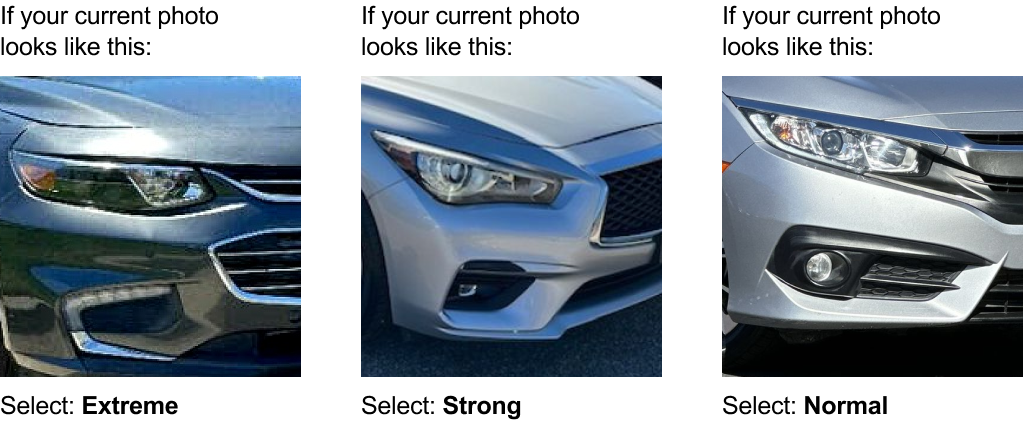
Normal (Recommended)
Ideal for most photos. This setting enhances details, reduces minor imperfections, and delivers stunning 4K clarity for professional-grade results. Perfect for well-lit, clear photos.
Strong (For low-res photos with blur)
Designed for photos that are slightly blurry or lower in resolution. This mode sharpens edges, restores clarity, and enhances fine details for a polished finish.
Extreme (For low-res photos with extreme noise)
For photos that need serious rescue. This setting is perfect for images with heavy noise, poor lighting, or extreme compression. It reduces noise dramatically and rebuilds details to create a vibrant, clean photo.
Example:
Important:
- Make sure you turn off Flex Photo if you're using 4K AI Upscaling.
- After activating the 4K AI Upscaling, allow 24 hours for your existing images to convert.
Need help deciding?
If you’re unsure which setting to use, start with Normal. You can always adjust based on the results or contact support for help.
