 Help Center
Vehicle stock number
Entering a vehicle stock number:
- In the back-end menu, go to Inventory › Inventory Manager
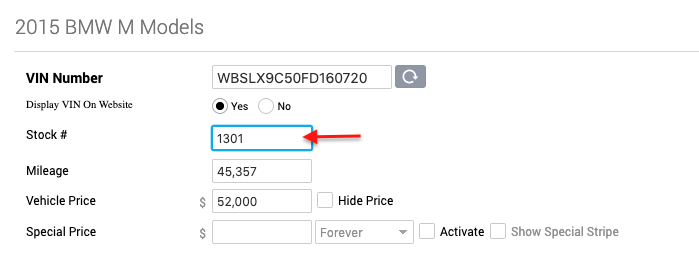
- Select the desired vehicle and go to General › Stock #
- Enter the vehicle stock number. (If your dealership does not use stock numbers, leave it blank and it will populate it with the last 6 digits of the VIN number.)
- Click the Save Changes button on the bottom left.
|
|
Since most third-party feeds require each vehicle to have a stock number, the system will assign a stock number if the field is left blank.
You will see the assigned stock number in the Inventory Manager, however, the stock number field in the Edit Vehicle page will be blank since it is not a custom assigned stock number. |
