 Help Center
Manage vehicle photos
To upload, download and arrange vehicle photos, follow these steps:
Uploading vehicle photos.
- In the back-end menu, go to Inventory › Inventory Manager
- Select the desired vehicle and go to Photos
- Click the red button Choose to upload photos.

To Download Photos:
- Click the Download Photos button.

- Select the style of photos you would like to download.
- Your photos will be download to your computer.
Downloaded Photo Styles Defined:
- Original Photos:
Full-Size regular photos will be downloaded without watermarks or editing. (Unless FlexPhoto is enabled) - Original Photos with Watermark (Full Size)
Full-size photos with your selected watermark. (Select your watermark in Website › Settings › Image Settings › Watermark) - 2x2 Photos with Watermark
Four images will be edited to fit in one image. (In the order as arranged in the next step)
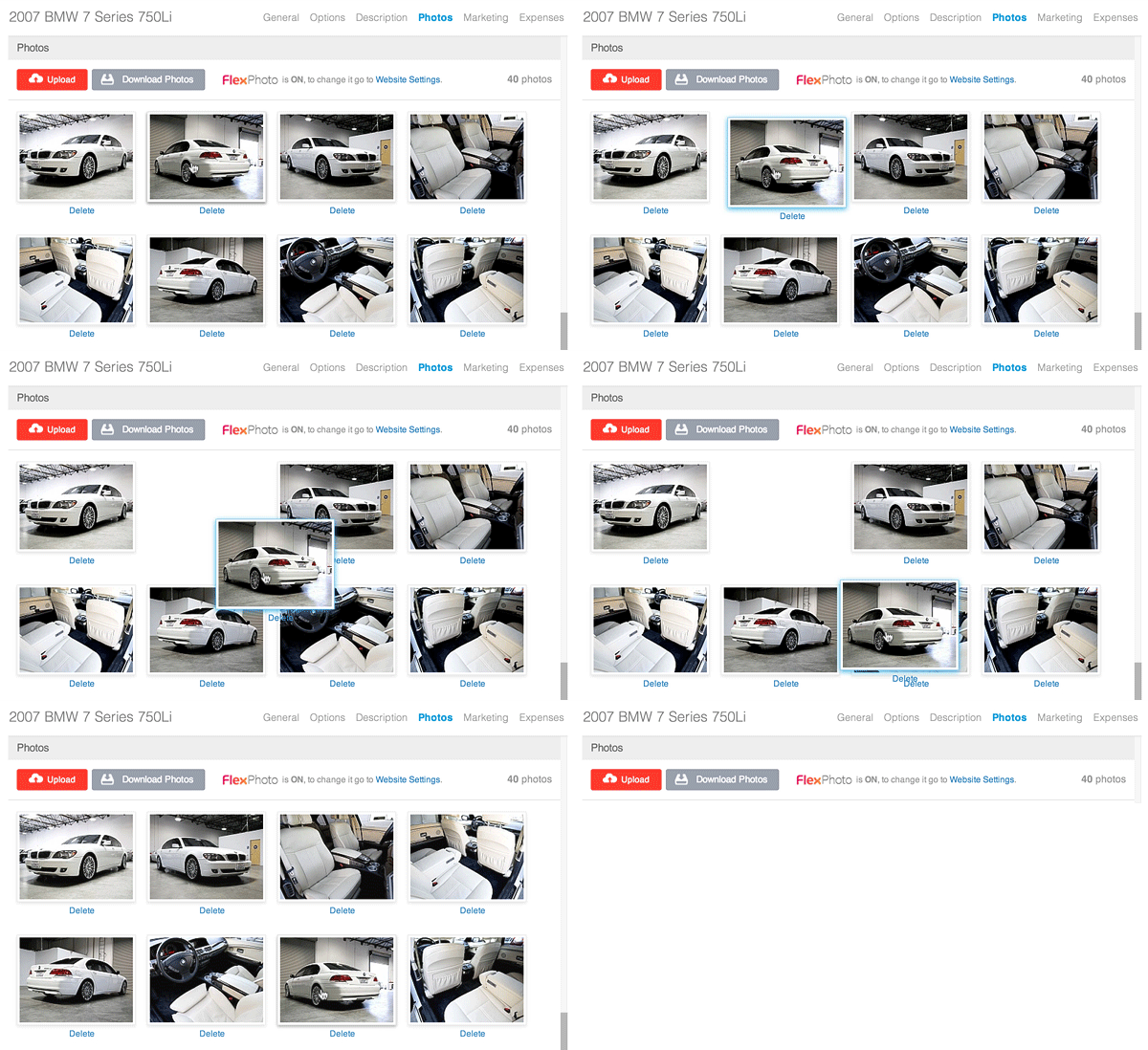
Arranging Photos:
- In the back-end menu, go to Inventory › Inventory Manager
- Select the desired vehicle and go to Photos
- Simply Drag & Drop the images to rearrange them.
Photos from Import:
- If your vehicle photos are imported from a third-party vendor, in order for the images to update you need to clear all photos or you can also set up for images to automatically sync and you have 3 options, just go to Marketing > Integrations, locate your third-party import click on Manage and under 'Photos syncing OFF at' select after how many pictures should the system stop updating the images automatically

If you want to delete the photos all you need to do is click on the trash can icon on the image you want to delete, or if you want to delete all images in the right corner you have the Delete All button
|
|
The thumbnail of the first photo in the photos section of the Edit Vehicle page will be the primary photo for that vehicle throughout your website.
|
