 Help Center
Print forms and window stickers
Printing forms through the Inventory Manager.
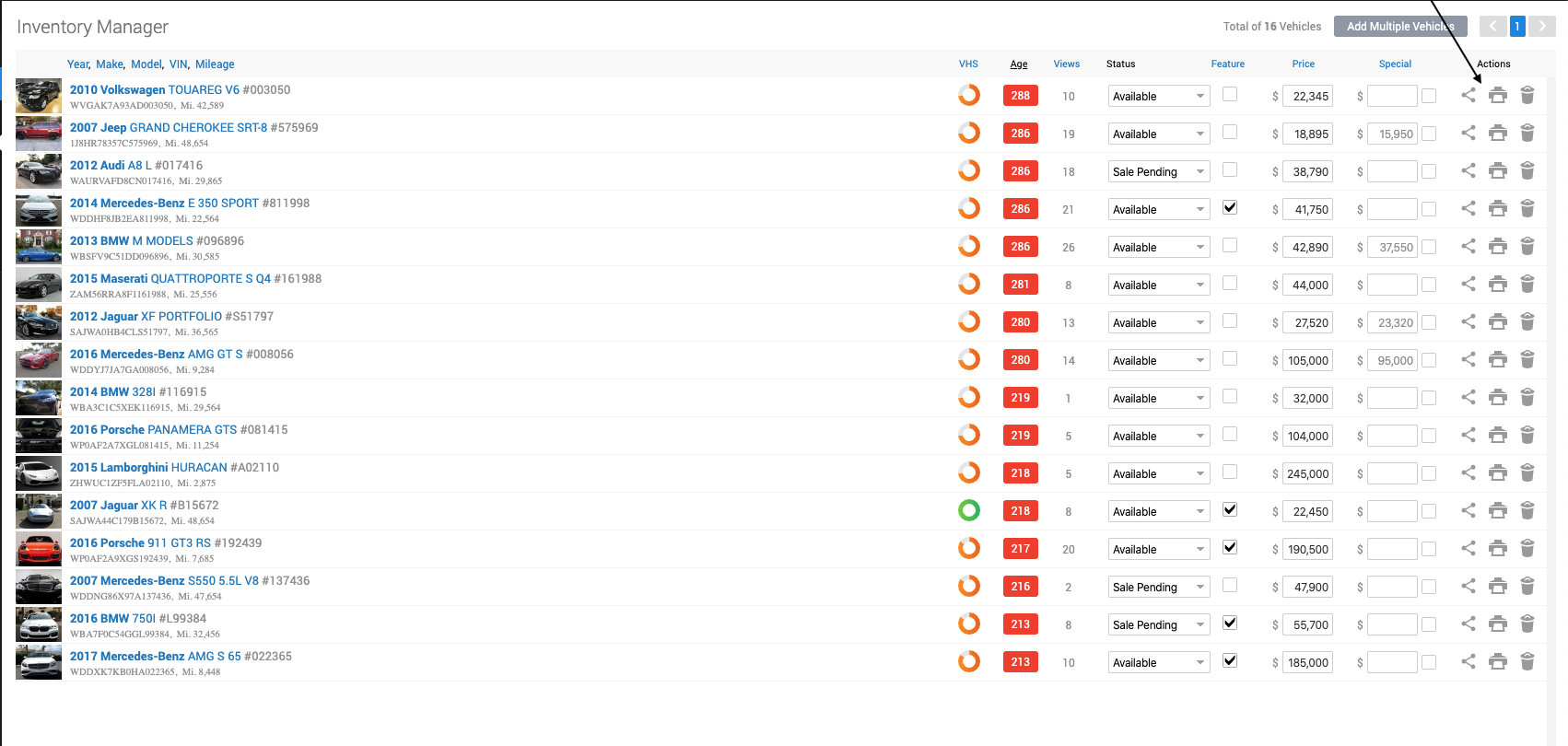
- In the back-end menu, go to Inventory › Inventory Manager.
- Click on the Printer icon.
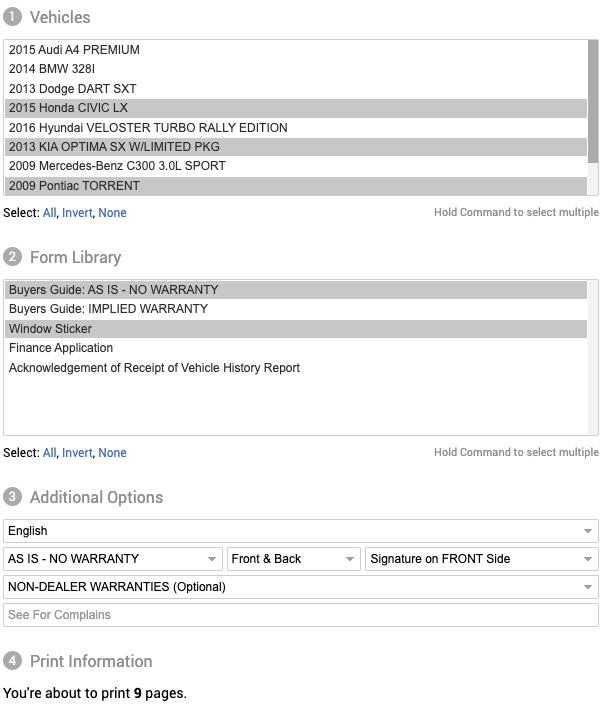
Once you're on the Print page you can choose one or multiple Vehicles, also select one or multiple Forms. You have Additional Options for adjusting the forms and then you click on the Print in the bottom left corner. And you'll get all forms ready to be printed out or downloaded.
Printing forms through the Front-End Website.
- Open the vehicle page on your website (Make sure you are logged in).
- On the black bar on top, click on Print.

Available forms for print are:
- Buyers Guide: AS IS - NO WARRANTY
- Buyers Guide: IMPLIED WARRANTY
- Window Sticker
- Finance Application
- Acknowledgment of Receipt of Vehicle History Report
