 Help Center
Special price
Entering a Special price on a vehicle.
- In the back-end menu, go to Inventory › Inventory Manager
- Select the vehicle for which you want to add the special price and go to General › Special Price
- Enter the Special Price.

- Check the Activate check box.

- Click the Save Changes button on the bottom left.

If you chose to show it for a limited time a window with the calendar will pop up so you can choose how long would you like the special price to last ( with choosing the Limited Time a timer will be shown on your vehicle, you can choose the style of your clock by going to Website › Settings › Inventory › S-P Clock Style )

Or you can choose to show the orange stripe that says SPECIAL buy selecting Show Special Stripe
You can also change the vehicles special price from the Inventory Manager.
- In the back-end menu, go to Inventory › Inventory Manager › Special Price column.
- Enter the Special Price.
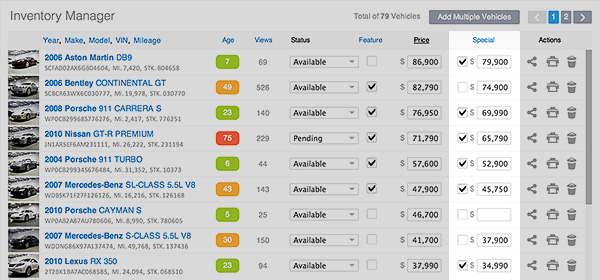
- Click the Save Changes button on the bottom left.
|
|
The special price will only show on your website and the third party feeds if the Activate checkbox is marked.
|
