Help Center
Filtering Leads
In the back-end menu, go to CRM › Leads
When you have a lot of leads, it’s really easy to filter them by selecting the Filter option
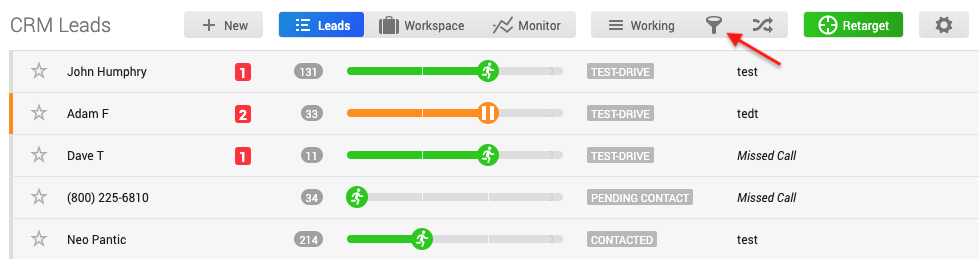
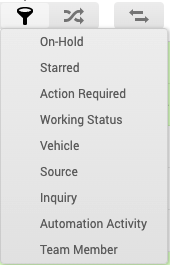
And you have multiple options for filtering. To remove the filter you just need to click on it again.
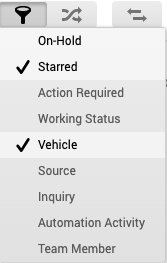
You can choose 2 or more filters as well ( for example you can filter it by Stared and Vehicle )
If you choose Working Status you can choose between 4 options or you can choose multiple ones as well and then just click on the blue Filter button. To remove one of them you just select again the filter that you want to remove and then just click on the blue Filter button or if you want to remove all of them you can click on the Clear All button and of course again on the blue Filter button.

If you chose Vehicle it will show all the cars you have in your inventory and you can choose to filter it by one or multiple vehicles. To remove one of them you just select again the vehicle that you want to remove and then just click on the blue Filter button or if you want to remove all of them you can click on the Clear All button and of course again on the blue Filter button.

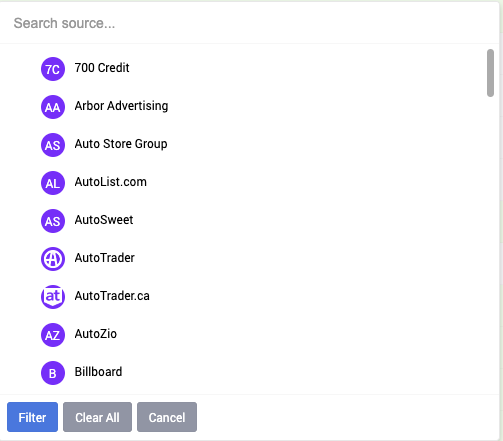
If you choose Source it will give you options to choose between all the sources that we have and the ones that you custom added. To remove one of them you just select again the one that you want to remove and then just click on the blue Filter button or if you want to remove all of them you can click on the Clear All button and of course again on the blue Filter button.
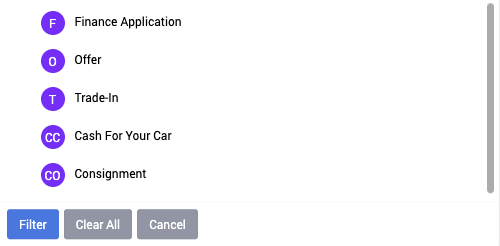
If you choose Inquiry you can choose between 5 options or you can choose multiple ones as well and then just click on the blue Filter button. To remove one of them you just select again the filter that you want to remove and then click on the blue Filter button or if you want to remove all of them you can click on the Clear All button and of course again on the blue Filter button.
If you choose Team Member it will give you options to choose between all the users you’ve added to Goxee ( you can check your users and add more users if you go to Admin › Management ), you can, of course, choose one or more users. To remove one of them you just select again the user that you want to remove and then just click on the blue Filter button or if you want to remove all of them you can click on the Clear All button and of course again on the blue Filter button.

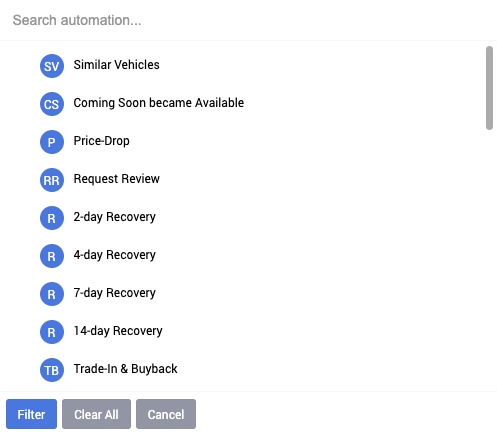
If you choose Automation Activity it will give you options to choose between all the automation options that we have. To remove one of them you just select again the user that you want to remove and then just click on the blue Filter button or if you want to remove all of them you can click on the Clear All button and of course again on the blue Filter button. (Please be aware that for this filter you would have to use Automations and that you're subscribed - How to Subscribe)
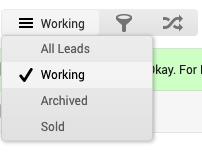
You can also filter by lead status. Just click on the button that says, Working.
Working is always a default status.

Once you select that, you’ll be able to see all the options. So you can view All Leads, Working, Archived, and Sold.