Help Center
Emails in Lead Workspace
In the back-end menu, go to CRM › Leads and select the desired customer.
Make sure that the customers email is added and if it is, you can send emails directly from the CRM.
You can check the email by putting a mouse cursor on @, and you can even copy it by just clicking on @

You can change or add the email by clicking on Manage

A small window will pop up, where you can change or add an email and after you’re done just click on the Save button

If the email is added, you can check all the emails with that customer and send emails by going to Messanger on the right and clicking on Email.
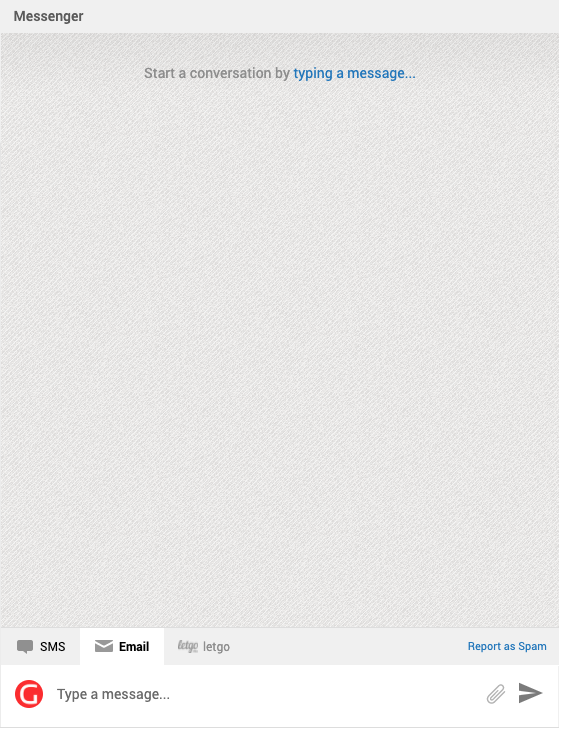
You can also add emojis, and links, use a prewritten template, or attach files.