 Help Center
Price
Adding the price from the Inventory Manager is easy. Once you go to Inventory > Inventory Manager you will see Price Column and just enter or adjust the price you want for the vehicle you want.
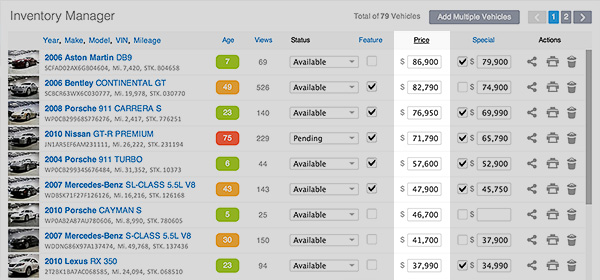
Once you are done click the Save Changes button on the bottom left.
You can also change the price from the Vehicle Edit Page.
Once you are done click the Save Changes button on the bottom left.
You can also change the price from the Vehicle Edit Page.
- In the back-end menu, go to Inventory › Inventory Manager
- Click on the desired vehicle and go to General › Price
- Enter the Price. You can also hide the price by selecting the box next to the Price saying Hide Price.
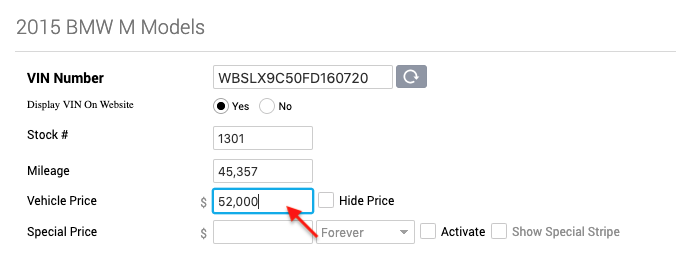
- Click the Save Changes button on the bottom left.
