 Help Center
Automatic Craigslist Posting
If you want the system to post on Craigslist for you, all you have to do is go to Marketing > Craigslist Poster and click on Campaigns in the top left corner.

When you click on Campaigns a new window will pop up and in the bottom left of the new window you need to click on the purple button + New Campaign

A new window will pop up again where you can now choose how the system will post.

Location Level:
Your inventory will be posted to Craigslist in order, repeating in each location, if you have more than one campaign running.
Last Post (CLLP):
Your inventory will be posted to Craigslist by the system looking at when was the vehicle posted. Meaning if for example Ford was posted 10 days ago and Toyota 2 days ago, it will skip Toyota because it was posted recently and post Ford now. In case where you have multiple locations it will post Ford in one location, but in the 2nd location, the system will see that Ford was just posted and skip it and post a different vehicle. So it will always prioritize the ones that haven't been posted recently or the ones that haven't been posted at all.










When you click on Campaigns a new window will pop up and in the bottom left of the new window you need to click on the purple button + New Campaign
A new window will pop up again where you can now choose how the system will post.
- The 1st line would be Post Location where you can choose where the vehicles are going to be posted. If you want to do multiple locations, all you have to do is create multiple campaigns with different locations.
- The 2nd line is Inventory Rotation and you have 2 options for that: Based On Location Level and Based On Last Post (CLLP)
Location Level:
Your inventory will be posted to Craigslist in order, repeating in each location, if you have more than one campaign running.
Last Post (CLLP):
Your inventory will be posted to Craigslist by the system looking at when was the vehicle posted. Meaning if for example Ford was posted 10 days ago and Toyota 2 days ago, it will skip Toyota because it was posted recently and post Ford now. In case where you have multiple locations it will post Ford in one location, but in the 2nd location, the system will see that Ford was just posted and skip it and post a different vehicle. So it will always prioritize the ones that haven't been posted recently or the ones that haven't been posted at all.
- The third line is Monthly Budget and that's where you can select how much you want to spend on Craigslist for the entire month on that specific location you picked. (Credits price is not included in the monthly budget you are choosing)
- The 4th line is On Days and that's where you pick on which days should the system post, if you want to skip certain days just simply unmark the box next to that specific day.
- The 5th line is Start Time and that's where you pick when the first post will go out. Please be aware that shows in PST time, so if you are EST for example, by choosing 7 a.m. it means it will post the first at 10 a.m. EST.
- The 6th line is Post Every where you can pick the frequency of the posts. This means if you choose to post 3 posts a day, and you've selected for your first post to go at 7 a.m. and select for example 'post every hour', the system will post those 3 posts at 7 a.m., 8 a.m., and 9 a.m. on the days you selected.
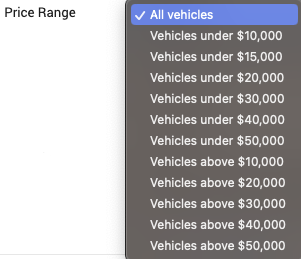
- The 7th line is Price Range, where you can choose for All Vehicles to be included in the campaign or pick a specific price range.
- The 8th line is Images where you can pick if the system will post only the vehicles that have images or all vehicles. (We recommend posting only the ones with the images)
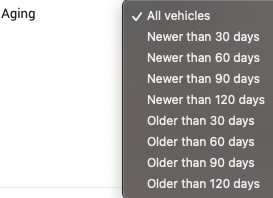
- The 9th line is Aging where you can select for the system to only pick vehicles that were in the system for a certain period of time.
- The 10th line is New/Used where you can pick for the system to post All Vehicles (New and Used), to only post New or to only post Used vehicles.
- The 11th line is Body Style where you can pick only vehicles that are a certain body style to be included. For example, you select only trucks and SUVs to be posted.
- The 12th line is Schedule where you can choose your Start and End for the campaign. Start has an Immediately option so the campaign will start as soon as you click publish or you can pick a specific date when to start. End has a Never option and that means the campaign will run until you disable it or remove it or you can also choose a specific date when the campaign should stop.
- The 13th line and the last line in the campaign is Estimate which shows, based on everything you selected, how many posts it will do each day, which body styles will it include, what is the price range (if any), will it post with images only or all, on which days, starting time and the frequency of posts.
