Help Center
Create new user
In the back-end menu, go to Admin › Management.
Click on + New User
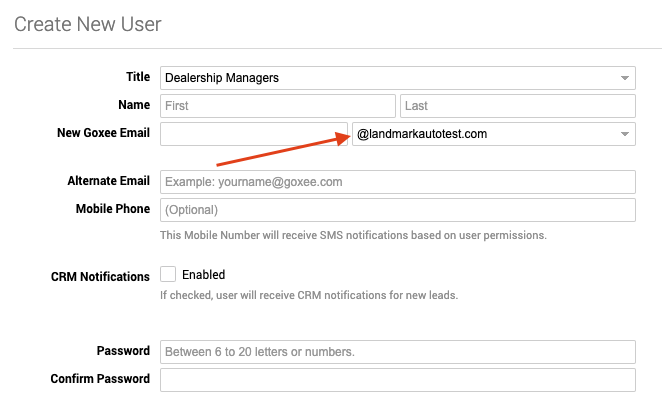
And fill in the details

Once everything is populated click the Save Changes button on the bottom left.
When you add users make sure to give them permissions right away because they will automatically have None permissions and that will just redirect them to the Goxee website, they are not going to be able to see the backend.
If when you are adding a user you have the New Goxee Email option, the second column needs to be already automatically filled out, if it's not it will not let you save the user. For that field to be automatically populated, you need to ensure that a domain is verified either for the website or for advertising purposes.