 Help Center
Create or edit an event
Adding an event to the calendar is easy, here's how:
- In the back-end menu, go to Calendar.
- Select the date and time to add an event.
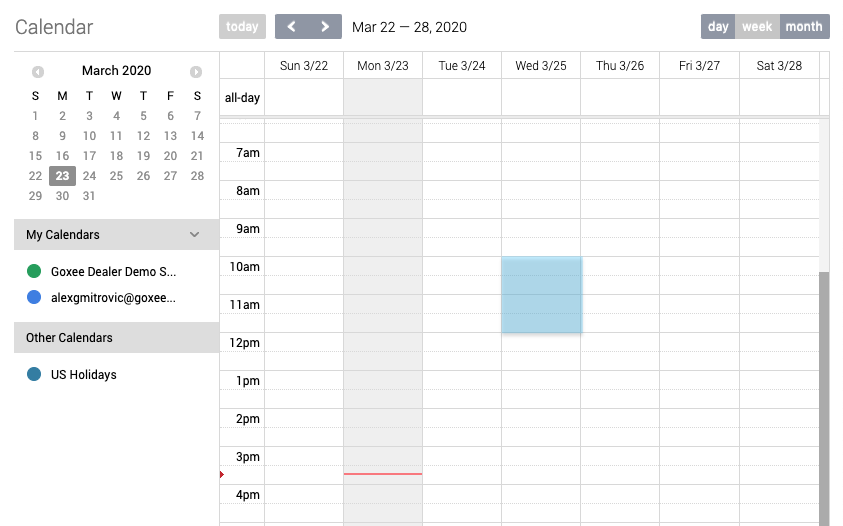
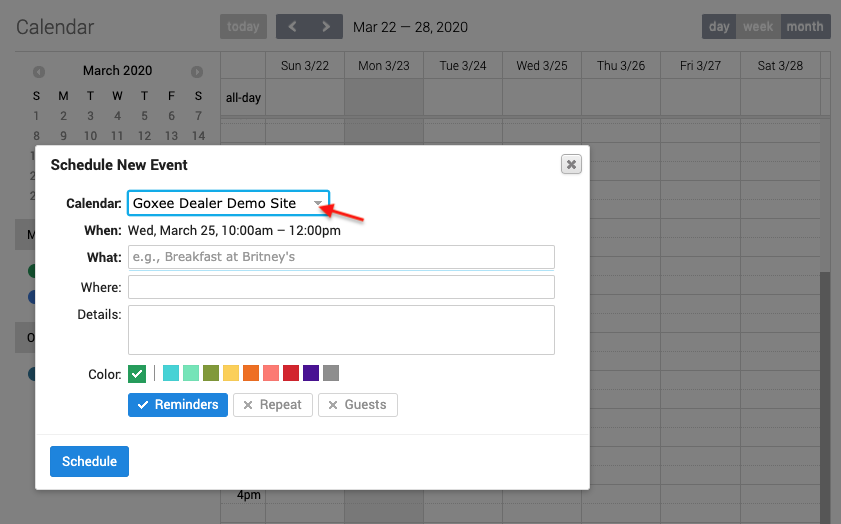
- Select the calendar to add the event to from the Calendar drop-down menu.
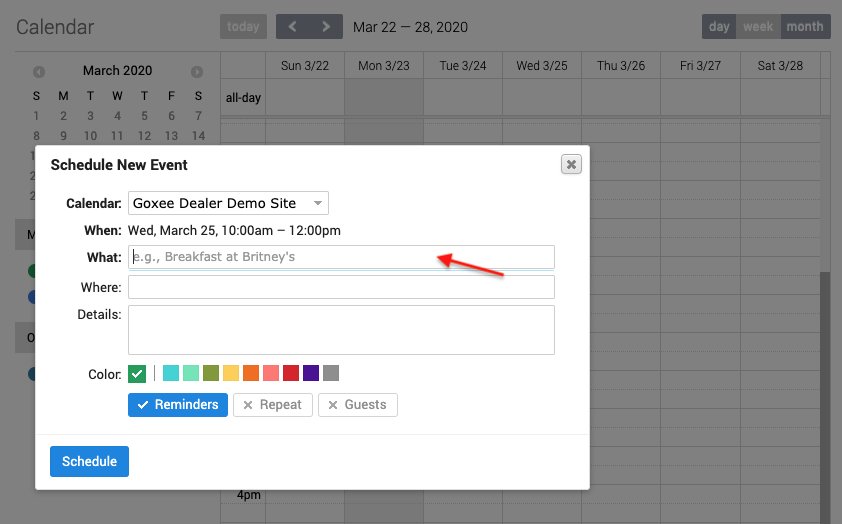
- Enter the event title.
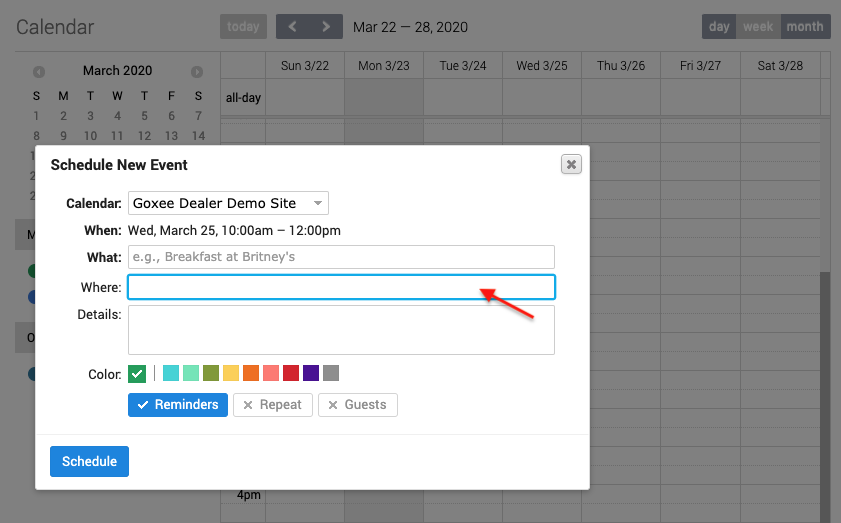
- Enter the event location (Optional).
- Enter the event details and select a calendar color. (Optional)
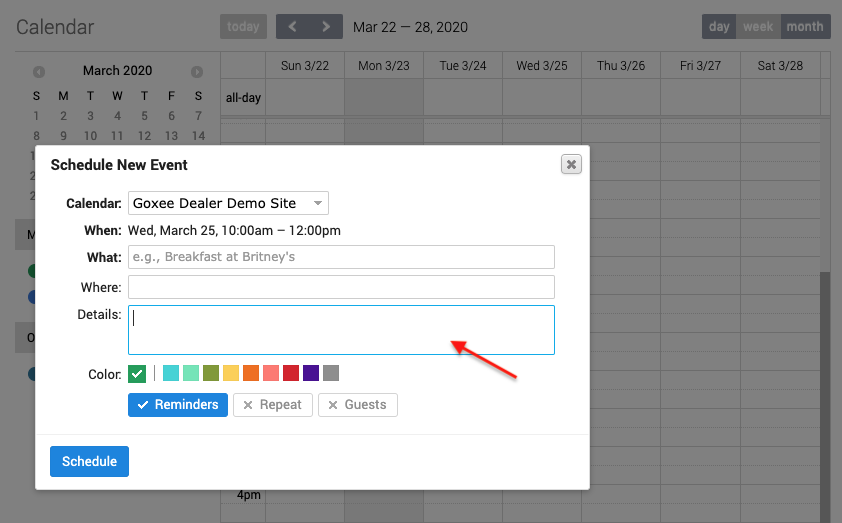
- There are default reminders set. To edit your reminders, click on Reminders.
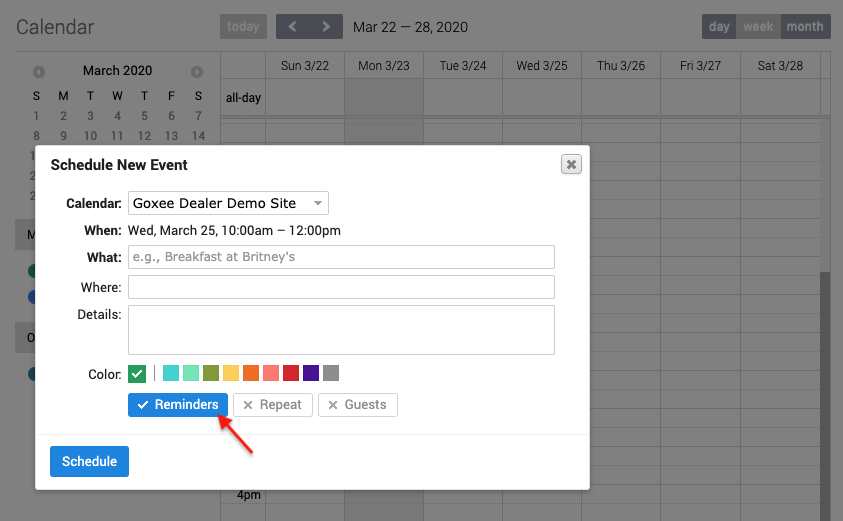
Set a reminder and click the Done button.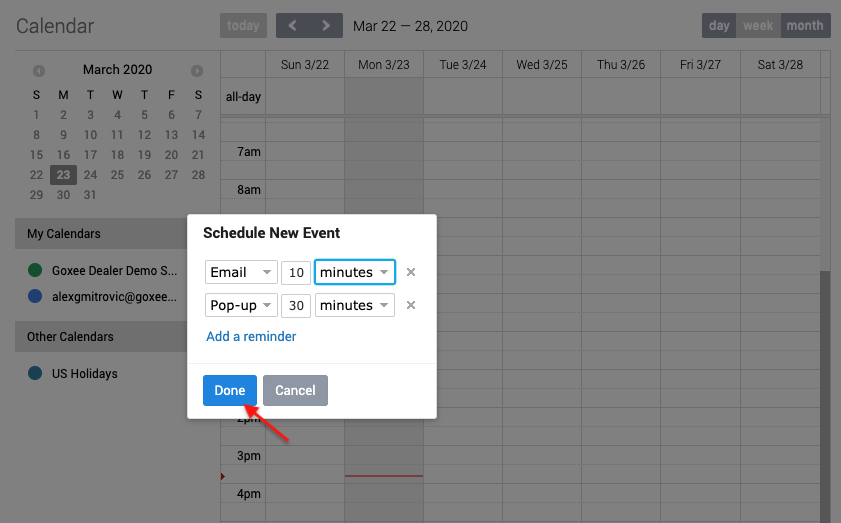
- To create a repeat event, click the Repeat button.
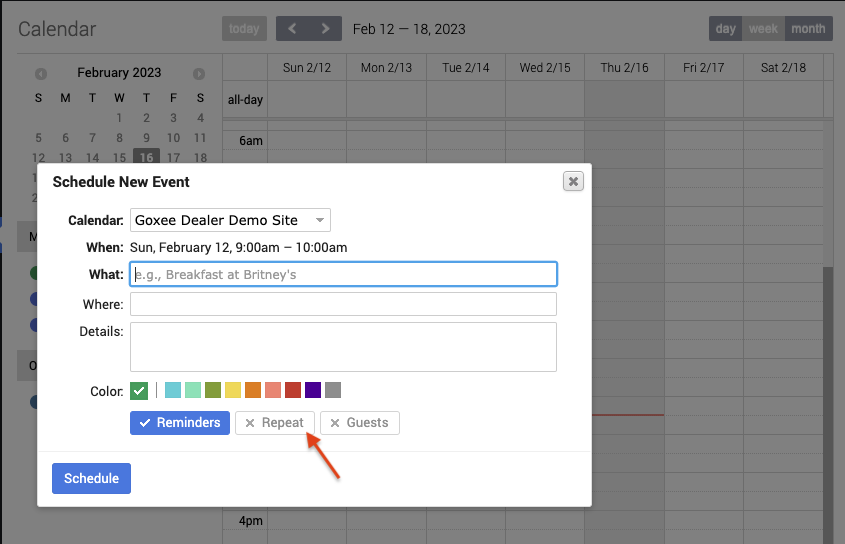
Select from the repeat event options and click the Done button.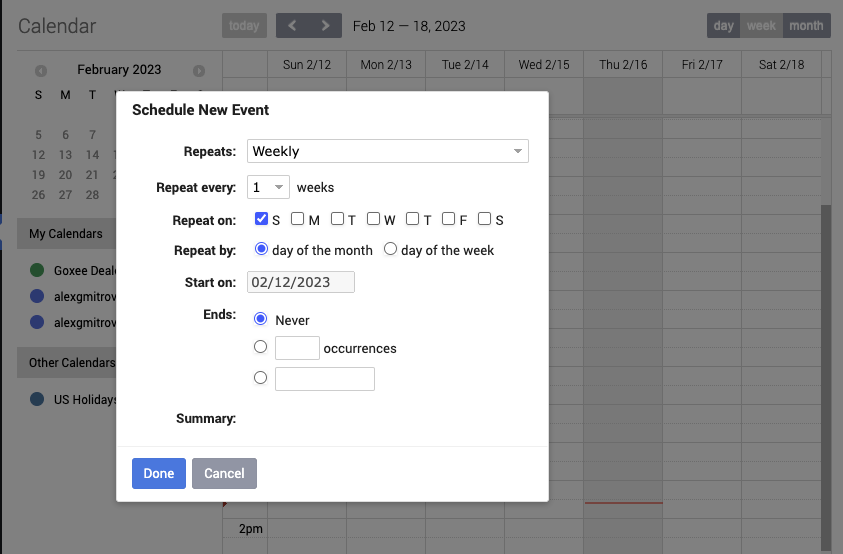
- To invite guests to the event, click the Guests button.
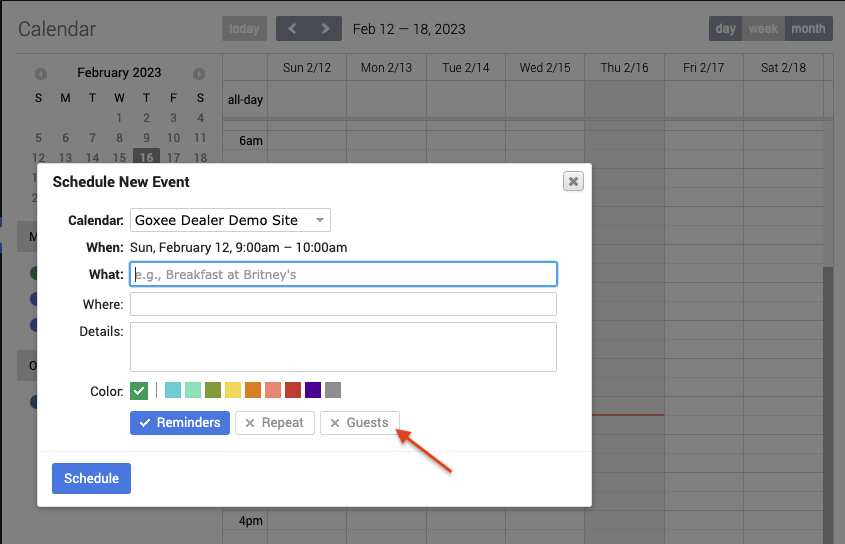
Enter the guest's email(s) and click the Done button.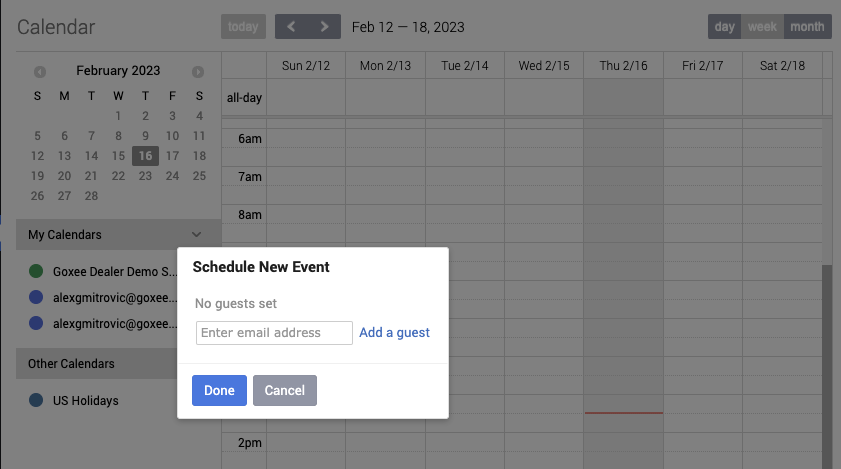
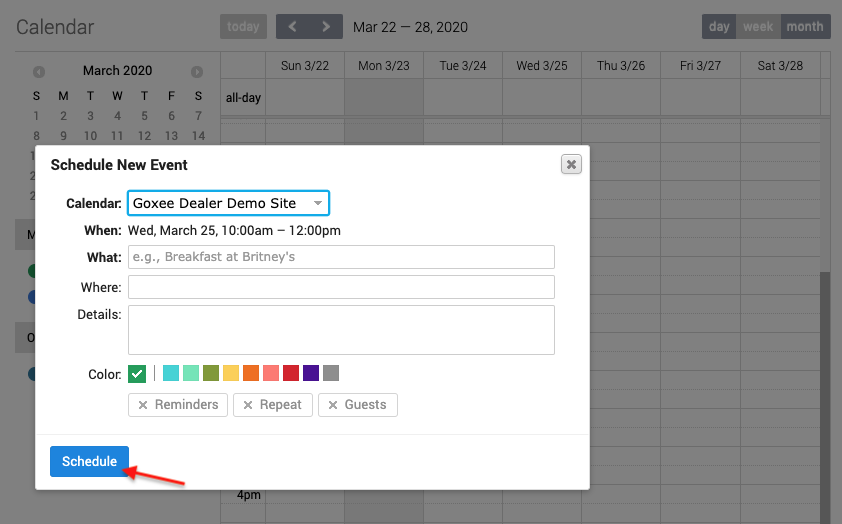
- Click the Schedule button to schedule the event.
|
|
CRM forms will automatically populate the details section of the event with the lead information.
|
